Automated k8s Cluster Provision on AWS

Background

Creating a Kubernetes cluster isn’t a simple task. While many managed solutions from cloud providers can simplify the process, after receiving a massive bill for an EKS cluster, I decided to build a cost-effective yet automated solution for a self-managed Kubernetes cluster. By using GitHub Actions, Terraform, and Ansible, I developed a streamlined method to quickly spin up a Kubernetes cluster with minimal manual configuration.

Code available at: calmcat2/automated-Kubernetes-aws-setup

Cluster Creation

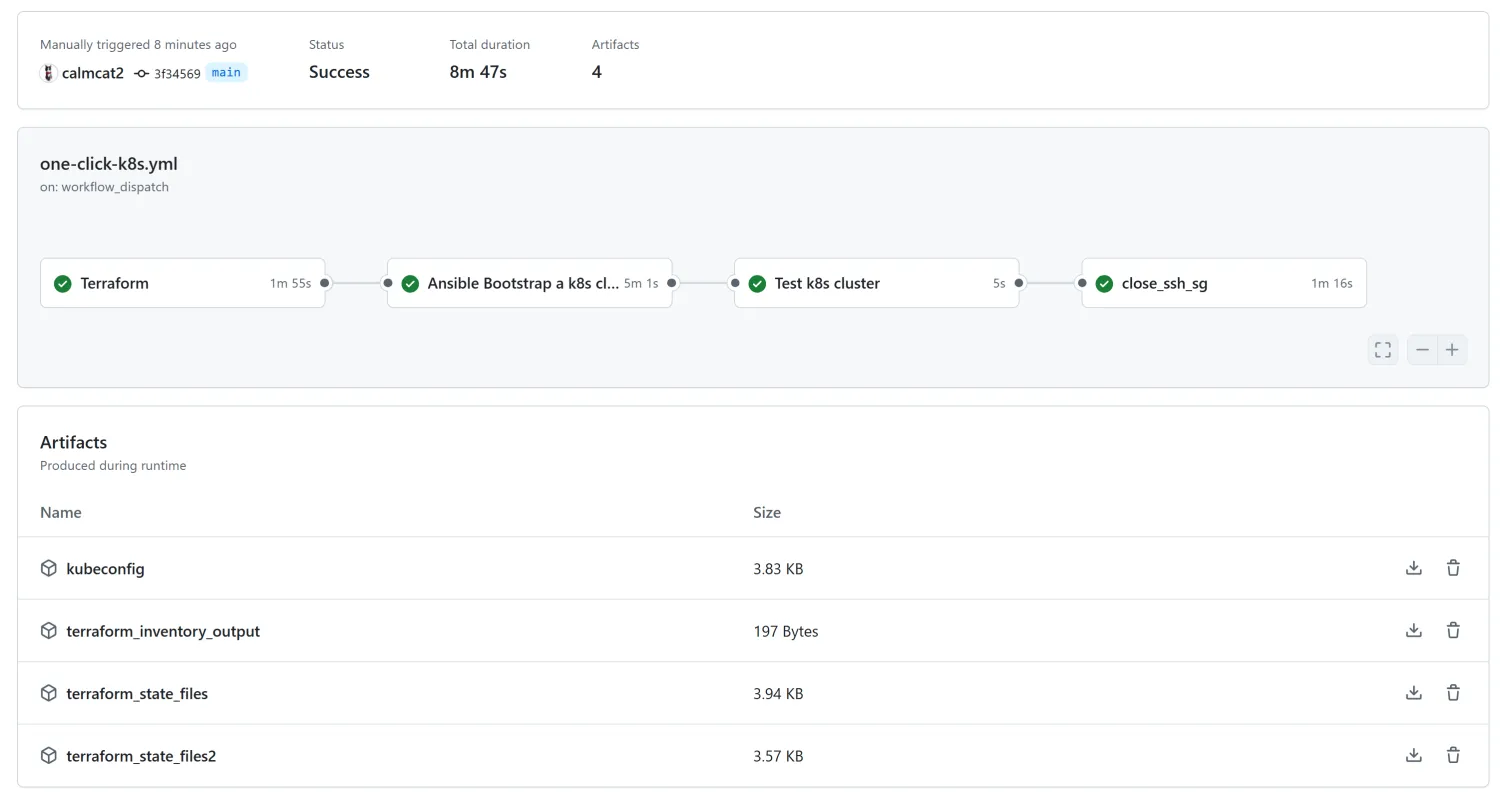
Workflow

The diagram above illustrates the automated process for deploying a Kubernetes. GitHub Actions orchestrates the entire workflow, executing each stage in sequence:

  1. Terraform (Infrastructure Provisioning):

    Terraform provisions the necessary networking components and EC2 instances required for the Kubernetes cluster.

  2. Ansible (Cluster Configuration):

    Ansible configures the nodes, sets up the Kubernetes cluster on the master node, and joins the worker nodes to the cluster.

  3. Testing (Cluster Health Check):

    A series of tests are run using kubectl to ensure that the Kubernetes cluster is healthy and all core components are functioning correctly.

  4. Terraform (Security Enhancement):

    Finally, Terraform closes the SSH ports on all nodes to enhance security. If needed, SSH access can be re-enabled later through security group modifications or use AWS Systems Manager (SSM) to access the instances.

Prerequisites

To run this workflow, you need to have a few things in place:

  • Repository Setup: You should copy this repository and create your own. It is highly recommended to use a private repository since all artifacts will be publicly accessible in a public repository.
  • AWS Credentials: You will need AWS user credentials (Access Key ID and Secret Access Key) with appropriate EC2 permissions. The minimum required permissions are detailed in the aws_iam_policy.json file within the repository.
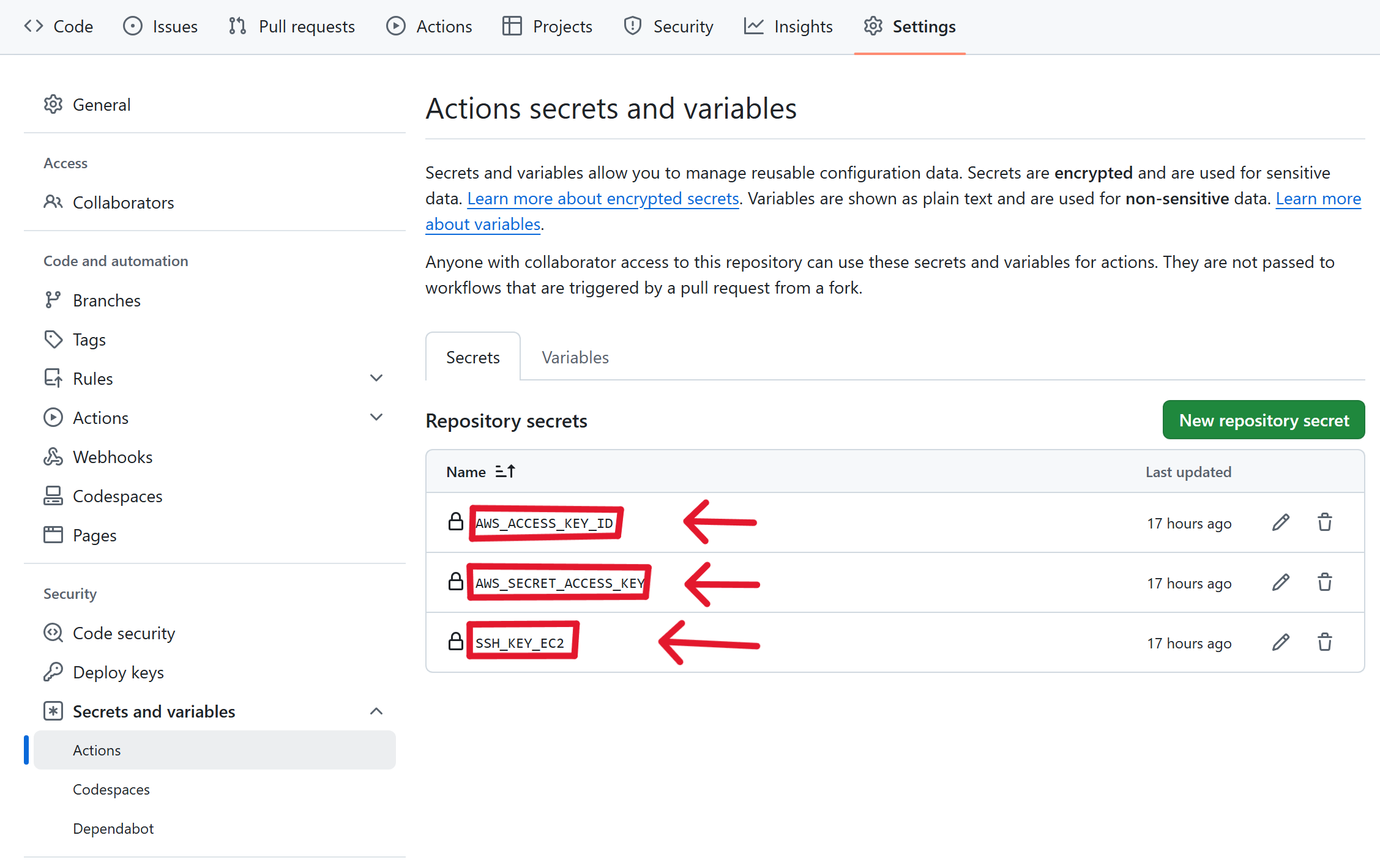
  • SSH Key: Generate an SSH key in AWS and save the private key in .pem format. Add this key to your repository secrets.

Add the credentials and ssh key in the repository secrets as below:

Workflow Code Breakdown

At the start of the workflow, a few customization options are provided. These allow you to define parameters like region, number of worker nodes, machine types, and SSH key names. The workflow is triggered manually using on: workflow_dispatch.

1
2
3
4
5
6
7
8
9
10
11
12
13
14
15
16
17
18
19
20
21
22
23
24
25
26
27
on:
workflow_dispatch:
inputs:
region:
description: 'Default region to create all resources (def. us-east-1).'
required: false
default: 'us-east-1'
type: string
num_workers:
description: 'Number of worker nodes to be provisioned (def. 1).'
required: false
default: 1
type: number
master_machine_type:
description: "Machine type of the master node (def. t2.medium)."
required: false
default: 't2.medium'
type: string
worker_machine_type:
description: "Machine type of the worker node (def. t2.medium)."
default: 't2.medium'
required: false
type: string
ssh_key_name:
description: "Name of the ssh key pair to be used for the EC2 instances."
required: true
type: string

Next, we grant read permissions to all jobs so they have access to the files in this repository. In the first job, GitHub Actions uses a Terraform setup provided by HashiCorp’s official action. Terraform provisions all necessary AWS resources such as VPCs, subnets, security groups, and EC2 instances for both master and worker nodes.

Once provisioning is complete, Terraform uploads the state file and an inventory file as artifacts for use in subsequent steps.

1
2
3
4
5
6
7
8
9
10
11
12
13
14
15
16
17
18
19
20
21
22
23
24
25
26
27
28
29
30
31
32
33
34
35
36
37
38
39
40
41
42
43
44
45
46
47
48
49
50
51
52
53
permissions:
contents: read
jobs:
Terraform-start:
name: 'Terraform'
runs-on: ubuntu-latest
defaults:
run:
shell: bash
working-directory: ./Terraform1
env:
AWS_ACCESS_KEY_ID: ${{ secrets.AWS_ACCESS_KEY_ID }}
AWS_SECRET_ACCESS_KEY: ${{ secrets.AWS_SECRET_ACCESS_KEY }}
TF_VAR_region: ${{inputs.region}}
TF_VAR_node_nums: ${{inputs.num_workers}}
TF_VAR_master_machine_type: ${{inputs.master_machine_type}}
TF_VAR_worker_machine_type: ${{inputs.worker_machine_type}}
TF_VAR_key_name: ${{inputs.ssh_key_name}}

steps:
- name: Checkout
uses: actions/checkout@v4

- name: Setup Terraform
uses: hashicorp/setup-terraform@v3.1.2

- name: Terraform Init
run: terraform init

- name: Terraform Format
run: terraform fmt

- name: Terraform Format check
run: terraform fmt -check

- name: Terraform Plan
run: terraform plan -input=false

- name: Terraform Apply
run: terraform apply -auto-approve -input=false
continue-on-error: true

- name: Upload Terraform State
uses: actions/upload-artifact@v4
with:
name: terraform_state_files
path: "./Terraform1/terraform.tfstate"

- name: Upload inventory
uses: actions/upload-artifact@v4
with:
name: terraform_inventory_output
path: "./Terraform1/ansible/inventory.ini"

After infrastructure provisioning is complete, Ansible takes over to configure the Kubernetes cluster. It downloads the inventory file artifact created by Terraform and uses it to configure both master and worker nodes.

Ansible installs Kubernetes components on each node, initializes the cluster on the master node, and joins worker nodes to it. Once completed, it transfers the kubeconfig file from the master node and uploads it as an artifact.

1
2
3
4
5
6
7
8
9
10
11
12
13
14
15
16
17
18
19
20
21
22
23
24
25
26
27
28
29
30
31
32
33
34
35
36
37
38
39
40
41
42
43
44
45
46
47
Ansible:
needs: Terraform-start
name: Ansible Bootstrap a Kubernetes cluster
runs-on: ubuntu-latest
defaults:
run:
shell: bash
working-directory: ./Ansible

steps:
- name: Checkout repository
uses: actions/checkout@v4

- name: Set up SSH
run: |
echo "${{ secrets.SSH_KEY_EC2 }}" > private_key.pem
chmod 600 private_key.pem

- name: Download inventory
uses: actions/download-artifact@v4.1.8
with:
name: terraform_inventory_output
path: ./Ansible/inventory

- name: Install Ansible
shell: bash
run: |
sudo apt update -y
sudo apt install -y ansible

- name: Run Ansible Playbook
env:
ANSIBLE_HOST_KEY_CHECKING: False
run: |
ansible-playbook -i inventory/inventory.ini playbooks/playbook.yml --private-key private_key.pem

- name: Copy kubeconfig to the github workspace
run: |
mkdir config
cp /tmp/kubeconfig config/kubeconfig

- name: Upload kubeconfig file
uses: actions/upload-artifact@v4
with:
name: kubeconfig
path: ./Ansible/config/kubeconfig

Next, a few kubectl commands are executed in a new job to ensure that everything is running smoothly using the provided kubeconfig file. This includes checking API server health, node readiness, system pod status, and component status.

1
2
3
4
5
6
7
8
9
10
11
12
13
14
15
16
17
18
19
20
21
22
23
24
25
26
27
28
29
30
31
32
33
34
35
36
37
38
39
40
41
42
43
44
45
46
47
48
49
50
51
52
53
54
55
56
57
58
59
60
61
Kubectl-test:
name: Test Kubernetes cluster
runs-on: ubuntu-latest
needs: Ansible

steps:
- name: Obtain kubeconfig
uses: actions/download-artifact@v4
with:
name: kubeconfig
path: ~/.kube

- name: Set KUBECONFIG env
id: kubeconfig
run: |
chmod 600 ~/.kube/kubeconfig
echo "KUBECONFIG_DATA=$(cat ~/.kube/kubeconfig | base64 -w 0)" >> $GITHUB_OUTPUT

- name: Kubectl tool installer
uses: tale/kubectl-action@v1
with:
base64-kube-config: ${{ steps.kubeconfig.outputs.KUBECONFIG_DATA }}
kubectl-version: v1.31.0

- name: Check Cluster Health
run: |
# Check API Server health
ls -la ~/.kube/kubeconfig
if ! kubectl get --raw='/readyz?verbose'; then
echo "API Server is not healthy"
exit 1
fi

# Check Node Status
if ! kubectl get nodes | grep -v "Ready" | grep -v "NAME"; then
echo "All nodes are Ready"
else
echo "Some nodes are not Ready"
kubectl get nodes
exit 1
fi

sleep 20

# Check Core Components
if ! kubectl get pods -n kube-system | grep -v "Running" | grep -v "Completed" | grep -v "NAME"; then
echo "All system pods are running"
else
echo "Some system pods are not running"
kubectl get pods -n kube-system
exit 1
fi

# Check Component Status
if ! kubectl get cs | grep -v "Healthy" | grep -v "NAME"; then
echo "All components are healthy"
else
echo "Some components are unhealthy"
kubectl get cs
exit 1
fi

After verifying that everything is working correctly, we close any open SSH ports on all nodes for security purposes. Initially opened for Ansible configuration tasks, these ports are no longer needed once setup is complete.

If future access is required, you can either modify security groups or use AWS Systems Manager (SSM) to access the EC2 instances.

1
2
3
4
5
6
7
8
9
10
11
12
13
14
15
16
17
18
19
20
21
22
23
24
25
26
27
28
29
30
31
32
33
34
35
36
37
38
39
40
41
42
43
Security-enhancement:
name: Close ssh port on all nodes
needs: Kubectl-test
runs-on: ubuntu-latest
defaults:
run:
shell: bash
working-directory: ./Terraform2
env:
AWS_ACCESS_KEY_ID: ${{ secrets.AWS_ACCESS_KEY_ID }}
AWS_SECRET_ACCESS_KEY: ${{ secrets.AWS_SECRET_ACCESS_KEY }}

steps:
- name: Checkout
uses: actions/checkout@v4

- name: Setup Terraform
uses: hashicorp/setup-terraform@v3.1.2

- name: Download terraform state file
uses: actions/download-artifact@v4.1.8
with:
name: terraform_state_files
path: ./Terraform2

- name: Terraform Init
run: terraform init

- name: Terraform Format
run: terraform fmt

- name: Terraform Plan
run: terraform plan -input=false

- name: Terraform Apply
run: terraform apply -auto-approve -input=false
continue-on-error: true

- name: Upload Terraform State
uses: actions/upload-artifact@v4
with:
name: terraform_state_files2
path: "./Terraform2/terraform.tfstate"

When the workflow completes successfully, you can download the kubeconfig file to access your cluster. Remember to handle sensitive artifacts carefully—running this workflow in a private repository is strongly recommended.

Key Implementations

Terraform: Provision Resources

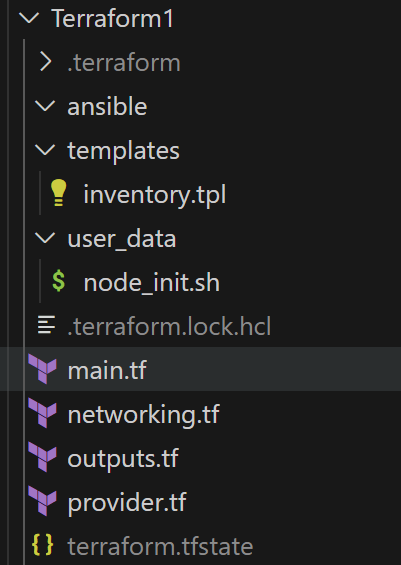
The Terraform configuration is responsible for creating the core infrastructure required for the Kubernetes cluster. The file structure is as follows and includes several key directories:

  • templates: Contains the inventory template used to generate the inventory file.
  • user_data: Stores the user data scripts necessary for node initialization.
  • ansible: Stores the inventory file generated by Terraform.

Networking configurations form the foundation of the infrastructure. Terraform provisions essential resources such as a VPC, subnets, security groups, an internet gateway, and route tables.

For instance, here’s how the VPC and subnets are defined:

1
2
3
4
5
6
7
8
9
10
11
12
13
14
15
16
17
resource "aws_vpc" "Kubernetes" {
tags = { Name = "Kubernetes VPC" }
cidr_block = "10.0.0.0/16"
}

resource "aws_subnet" "public" {
vpc_id = aws_vpc.Kubernetes.id
cidr_block = "10.0.0.0/24"
tags = { Name = "Kubernetes-public" }
}

resource "aws_subnet" "private" {
vpc_id = aws_vpc.Kubernetes.id
cidr_block = "10.0.1.0/24"
tags = { Name = "Kubernetes-private" }
}

The security group configurations follow the rules outlined in the tables below:

Master Nodes:

Protocol Port Range Source Purpose
TCP 22 0.0.0.0/0 SSH access for the workflow server
TCP 6443 0.0.0.0/0 Kubernetes API server access (external and internal clients)
TCP ALL Master nodes and Self Full access between master nodes for control plane communication
UDP 8472 Worker nodes flannel overlay network (vxlan backend)
UDP 8285 Worker nodes flannel overlay network - (udp backend)

Worker Nodes:

Protocol Port Range Source Purpose
All All Master & worker nodes Full access between worker and master nodes for cluster operations
1
2
3
4
5
6
7
8
9
10
11
12
13
14
15
16
17
18
19
20
21
22
23
24
25
26
27
28
29
30
31
32
33
34
35
36
37
38
39
40
41
42
43
44
45
46
47
48
49
50
51
52
53
54
55
56
57
58
59
60
61
62
63
64
65
66
67
68
69
70
71
72
73
74
75
76
77
78
79
80
81
82
83
84
85
86
87
88
89
90
91
92
93
94
95
96
97
98
99
100
101
102
103
104
105
106
107
108
109
110
resource "aws_security_group" "k8s_master" {
name = "k8s_master_nodes"
vpc_id = aws_vpc.k8s.id
revoke_rules_on_delete = true
tags = {
Name = "k8s-master-sg"
}
}

#outbound rule for master nodes
resource "aws_vpc_security_group_egress_rule" "k8s_master_outbound" {
# Outbound
security_group_id = aws_security_group.k8s_master.id
ip_protocol = "-1"
cidr_ipv4 = "0.0.0.0/0"
}

# Access to port 6443 temporarily open to all
resource "aws_vpc_security_group_ingress_rule" "k8s_master_api" {
security_group_id = aws_security_group.k8s_master.id

cidr_ipv4 = "0.0.0.0/0"
from_port = 6443
ip_protocol = "tcp"
to_port = 6443
}

# SSH access to masters
resource "aws_vpc_security_group_ingress_rule" "k8s_master_ssh" {
security_group_id = aws_security_group.k8s_master.id

cidr_ipv4 = "0.0.0.0/0"
from_port = 22
ip_protocol = "tcp"
to_port = 22
}

# Inbound from other masters and self
resource "aws_vpc_security_group_ingress_rule" "k8s_master_master" {
security_group_id = aws_security_group.k8s_master.id

referenced_security_group_id = aws_security_group.k8s_master.id
ip_protocol = "-1"

}

# Inbound from workers for flannel networking
resource "aws_vpc_security_group_ingress_rule" "k8s_master_worker_flannel1" {
security_group_id = aws_security_group.k8s_master.id

referenced_security_group_id = aws_security_group.k8s_worker.id
ip_protocol = "udp"
from_port = 8285
to_port = 8285

}
resource "aws_vpc_security_group_ingress_rule" "k8s_master_worker_flannel2" {
security_group_id = aws_security_group.k8s_master.id

referenced_security_group_id = aws_security_group.k8s_worker.id
ip_protocol = "udp"
from_port = 8472
to_port = 8472

}

resource "aws_security_group" "k8s_worker" {
name = "k8s_worker_nodes"
vpc_id = aws_vpc.k8s.id
revoke_rules_on_delete = true
tags = {
Name = "k8s-worker-sg"
}
}

#outbound rule for worker nodes
resource "aws_vpc_security_group_egress_rule" "k8s_worker_outbound" {
security_group_id = aws_security_group.k8s_worker.id
ip_protocol = "-1"
cidr_ipv4 = "0.0.0.0/0"
}

# SSH access to workers
resource "aws_vpc_security_group_ingress_rule" "k8s_worker_ssh" {
security_group_id = aws_security_group.k8s_worker.id

cidr_ipv4 = "0.0.0.0/0"
from_port = 22
ip_protocol = "tcp"
to_port = 22
}

# Inbound from other workers
resource "aws_vpc_security_group_ingress_rule" "k8s_worker_worker" {
security_group_id = aws_security_group.k8s_worker.id

referenced_security_group_id = aws_security_group.k8s_worker.id
ip_protocol = "-1"

}

# Inbound from masters
resource "aws_vpc_security_group_ingress_rule" "k8s_worker_master" {
security_group_id = aws_security_group.k8s_worker.id

referenced_security_group_id = aws_security_group.k8s_master.id
ip_protocol = "-1"

}

As a side note, at the end of the workflow, the security groups are modified to close the SSH port on all nodes. You can also customize the security group rules in the Terraform2/networking.tf file to adjust additional settings as needed.

Terraform also provisions EC2 instances for both master and worker nodes, using user_data scripts for node initialization:

1
2
3
4
5
6
7
8
9
10
11
12
13
14
15
16
17
18
19
20
21
22
23
24
25
26
27
28
29
30
31
32
33
34
35
resource "aws_instance" "Kubernetes_master" {
tags = {
Name = "Kubernetes-master01"
Service = "one-click-Kubernetes"
Env = "dev"
Role = "Kubernetes-master"
Team = "dev"
}
instance_type = var.master_machine_type
vpc_security_group_ids = [aws_security_group.Kubernetes_master.id]
subnet_id = aws_subnet.public.id
key_name = var.key_name
ami = var.Kubernetes_ami
user_data = file("user_data/node_init.sh")
associate_public_ip_address = true

}
resource "aws_instance" "Kubernetes_workers" {
count = var.node_nums
tags = {
Name = "worker-${count.index}"
Service = "one-click-Kubernetes"
Env = "dev"
Role = "Kubernetes-worker"
Team = "dev"
}
instance_type = var.worker_machine_type
vpc_security_group_ids = [aws_security_group.Kubernetes_worker.id]
subnet_id = aws_subnet.public.id
key_name = var.key_name
ami = var.Kubernetes_ami
user_data = file("user_data/node_init.sh")
associate_public_ip_address = true

}

Finally, Terraform generates an inventory file that will be passed to Ansible for further configuration:

1
2
3
4
5
6
7
8
resource "local_file" "inventory" {
filename = "ansible/inventory.ini"
content = templatefile("${path.module}/templates/inventory.tpl", {
Kubernetes-master_ips = aws_instance.Kubernetes_master.public_ip
worker-node_ips = aws_instance.Kubernetes_workers[*].public_ip
}
)
}

Ansible: Create a Kubernetes cluster

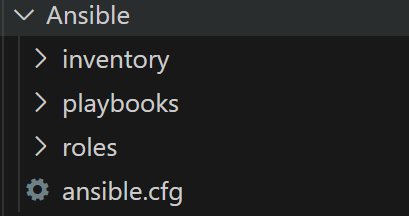
Ansible automates the setup of Kubernetes on all nodes by performing tasks such as installing necessary packages, configuring networking, and initializing Kubernetes components. Its file structure is below.

The roles/k8s_node directory contains tasks for configuring each node:

  1. Install containerd and runc
1
2
3
4
5
6
7
8
9
10
11
12
13
14
15
16
17
18
19
20
21
22
23
24
25
26
27
28
29
30
31
32
33
34
35
36
37
38
39
40
41
42
43
44
45
46
47
48
49
50
51
52
53
54
55
56
57
58
59
60
61
62
63
64
65
66
67
68
69
70
71
72
73
74
75
76
77
78
79
80
---
- name: Update package cache
apt:
update_cache: yes

- name: Download and Install containerd
block:
- name: Download containerd plugins
get_url:
url: https://github.com/containerd/containerd/releases/download/v1.7.23/containerd-1.7.23-linux-amd64.tar.gz
dest: /tmp/containerd-1.7.23-linux-amd64.tar.gz
mode: '0644'

- name: Extract containerd plugins
unarchive:
src: /tmp/containerd-1.7.23-linux-amd64.tar.gz
dest: /usr/local
remote_src: yes

- name: Clean up downloaded archive
file:
path: /tmp/containerd-1.7.23-linux-amd64.tar.gz
state: absent

- name: Ensure /usr/local/lib/systemd/system/ directory exists
file:
path: /usr/local/lib/systemd/system/
state: directory
mode: '0755'

- name: Add containerd systemd file
get_url:
url: https://raw.githubusercontent.com/containerd/containerd/main/containerd.service
dest: /usr/local/lib/systemd/system/containerd.service
mode: '0644'

- name: Reload daemon
systemd:
daemon_reload: true

- name: Enable and start containerd service
systemd:
name: containerd
enabled: true
state: started

- name: Ensure /etc/containerd/ directory exists
file:
path: /etc/containerd/
state: directory
mode: '0755'

- name: Configure containerd to use systemd as the cgroup driver
copy:
src: containerd_config.toml
dest: /etc/containerd/config.toml
mode: '0644'

- name: Start containerd service
systemd:
name: containerd
state: restarted

- name: Verify containerd status
systemd:
name: containerd
state: started

- name: Download and install runc
block:
- name: Download runc
get_url:
url: https://github.com/opencontainers/runc/releases/download/v1.2.0/runc.amd64
dest: /tmp/runc.amd64
mode: "644"

- name: Install runc
command:
install -m 755 /tmp/runc.amd64 /usr/local/sbin/runc

  1. Install Kubernetes components: kubelet, kubeadm, and kubectl. Here it’s hard coded to install Kubernetes v1.31.
1
2
3
4
5
6
7
8
9
10
11
12
13
14
15
16
17
18
19
20
21
22
23
24
25
26
27
28
29
30
31
32
33
34
35
36
37
38
39
40
41
42
43
44
45
46
47
48
49
50
51
52
53
54
55
56
57
58
59
60
61
62
63
64
65
66
67
68
69
70
71
72
---

- name: Swap off for kubernetes
command: swapoff -a

- name: apt update
apt:
update_cache: yes

- name: Install necessary packages
apt:
name:
- apt-transport-https
- ca-certificates
- curl
- gpg
state: latest

- name: Download the Kubernetes GPG key and add it to the keyring
shell: |
curl -fsSL https://pkgs.Kubernetes.io/core:/stable:/v1.31/deb/Release.key |
gpg --dearmor -o /etc/apt/keyrings/kubernetes-apt-keyring.gpg
args:
creates: /etc/apt/keyrings/kubernetes-apt-keyring.gpg

- name: Create Kubernetes APT repository file
file:
path: /etc/apt/sources.list.d/kubernetes.list
state: touch
mode: '0644'

- name: Add Kubernetes APT repository
lineinfile:
path: /etc/apt/sources.list.d/kubernetes.list
line: "deb [signed-by=/etc/apt/keyrings/kubernetes-apt-keyring.gpg] https://pkgs.Kubernetes.io/core:/stable:/v1.31/deb/ /"
state: present

- name: apt update
apt:
update_cache: yes

- name: Install kubelet, kubeadm and kubectl
apt:
name:
- kubelet
- kubeadm
- kubectl
state: present

- name: Mark kubelet, kubeadm, and kubectl to hold their version (prevent upgrades)
command: apt-mark hold kubelet kubeadm kubectl

- name: Add kubelet config file
copy:
src: kubelet_config.yml
dest: /var/lib/kubelet/config.yaml
mode: '0644'

- name: Enable kubelet
service:
name: kubelet
state: started
enabled: true

- name: Verify installation by checking kubelet status
command: systemctl status kubelet
register: kubelet_status
ignore_errors: true

- name: Display kubelet status output
debug:
var: kubelet_status.stdout_lines
  1. IP Forwarding Configuration
1
2
3
4
5
6
7
8
9
10
11
12
13
14
15
16
17
18
19
20
21
22
23
24
25
26
27
28
29
30
31
32
33
34
35
36
---

- name: Verify /etc/sysctl.d/ directory exists
file:
path: /etc/sysctl.d/Kubernetes.conf
state: touch
mode: '0644'

- name: Configure kernel modules
copy:
dest: /etc/modules-load.d/Kubernetes.conf
content: |
overlay
br_netfilter
mode: '0644'

- name: Load kernel modules
modprobe:
name: "{{ item }}"
state: present
loop:
- overlay
- br_netfilter

- name: Configure sysctl parameters
copy:
dest: /etc/sysctl.d/Kubernetes.conf
content: |
net.bridge.bridge-nf-call-iptables = 1
net.bridge.bridge-nf-call-ip6tables = 1
net.ipv4.ip_forward = 1
mode: '0644'

- name: Apply sysctl parameters
command: sysctl --system

Note that both containerd and kubelet are configured to use systemd as the cgroupDriver. This ensures consistency in how the container runtime and Kubernetes manage resources. The configuration files for these components are stored in the path ansible/roles/k8s_node/files.

The Ansible playbook follows a structured sequence to configure all nodes, initialize the Kubernetes cluster on the master node using kubeadm, join the worker nodes to the cluster, and install the Flannel network plugin.

Here’s a breakdown of the playbook:

1
2
3
4
5
6
7
8
9
10
11
12
13
14
15
16
17
18
19
20
21
22
23
24
25
26
27
28
29
30
31
32
33
34
35
36
37
38
39
40
41
42
43
44
45
46
47
48
49
50
51
52
53
54
55
56
57
58
59
60
61
62
63
64
65
66
67
68
69
70
71
72
73
74
75
76
77
78
79
80
81
82
83
84
85
86
87
88
89
90
91
92
93
94
95
96
97
98
99
100
101
102
103
104
105
106
107
108
109
110
111
112
113
114
115
---

- hosts: all
remote_user: ubuntu
become: true
gather_facts: true
any_errors_fatal: true
roles:
- Kubernetes_node

- hosts: Kubernetes_master
remote_user: ubuntu
become: true
tasks:
- name: Run kubeadm init on the master node
command: >
kubeadm init
--pod-network-cidr=10.244.0.0/16
--kubernetes-version=v1.31.0
--control-plane-endpoint={{ groups["Kubernetes_master"][0] }}
--apiserver-cert-extra-sans={{ groups["Kubernetes_master"][0] }}
register: init_output

- name: Display kubeadm init output
debug:
var: init_output.stdout_lines

- name: Set up kubeconfig for the root user
shell: |
mkdir -p $HOME/.kube
sudo cp -i /etc/kubernetes/admin.conf $HOME/.kube/config
sudo chown $(id -u):$(id -g) $HOME/.kube/config

- name: Get the join command for joining worker nodes
command: kubeadm token create --print-join-command
register: kubernetes_join_command

- name: Display the kubeadm join command
debug:
var: kubernetes_join_command.stdout

- name: Copy join command to local file.
local_action: copy content="{{ kubernetes_join_command.stdout }}" dest="kubernetes_join_command" mode=0777

- hosts: Kubernetes_workers
remote_user: ubuntu
become: true
tasks:
- name: Copy join command from Ansible host to worker nodes.
copy:
src: kubernetes_join_command
dest: /tmp/kubernetes_join_command
mode: '0777'

- name: Join Worker Node to Cluster
command: sh /tmp/kubernetes_join_command
register: worker_join

- name: Display outputs of kubeadm join
debug:
var: worker_join

- hosts: Kubernetes_master
remote_user: ubuntu
become: true
tasks:
- name: Verify initial kubectl get nodes
command: kubectl get nodes
register: kubectl_outputs
environment:
KUBECONFIG: /etc/kubernetes/admin.conf

- name: Display initial node status
debug:
var: kubectl_outputs.stdout_lines

- name: Install Flannel network plugins
command: kubectl apply -f https://github.com/flannel-io/flannel/releases/latest/download/kube-flannel.yml
register: flannel_result
failed_when: flannel_result.rc != 0
environment:
KUBECONFIG: /etc/kubernetes/admin.conf

- name: Wait for nodes becoming ready
command: kubectl wait --for=condition=Ready nodes --all --timeout=300s
register: wait_result
failed_when: wait_result.rc != 0
environment:
KUBECONFIG: /etc/kubernetes/admin.conf

- name: Verify final node status
command: kubectl get pods -A -o wide
register: all_pods
environment:
KUBECONFIG: /etc/kubernetes/admin.conf

- name: Display final node status
debug:
var: all_pods.stdout_lines

- name: Export kubeconfig file
fetch:
src: /etc/kubernetes/admin.conf
dest: /tmp/kubeconfig
flat: yes
mode: '0644'
ignore_errors: true
# Replace the API endpoint as the master's public IP
- hosts: localhost
tasks:
- name: Replace the IP in the kubeconfig file
replace:
path: /tmp/kubeconfig
regexp: 'https://[0-9.]+:6443$'
replace: 'https://{{ groups["k8s_master"][0] }}:6443'

Hands on

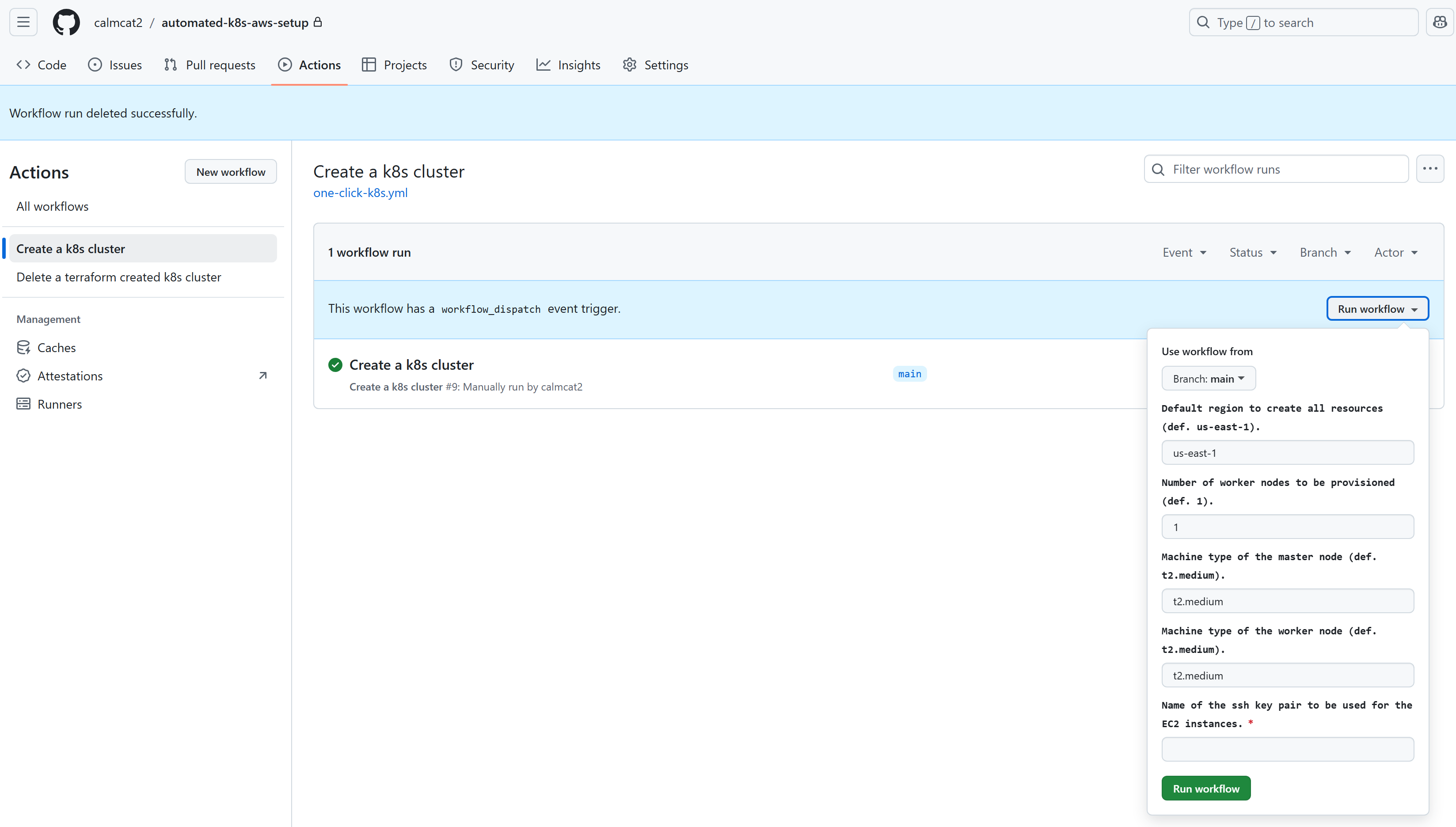
Go to the Actions page in the Github repository and choose the workflow Create a k8s cluster. As shown below, when you click Run workflow, You will be prompted to provide optional customization parameters and the SSH key name.

For example, I need to create a cluster with 2 worker nodes, then modify the second parameter (num_workers) to 2. Next, enter the SSH key name that I previously created in AWS and click Run workflow.

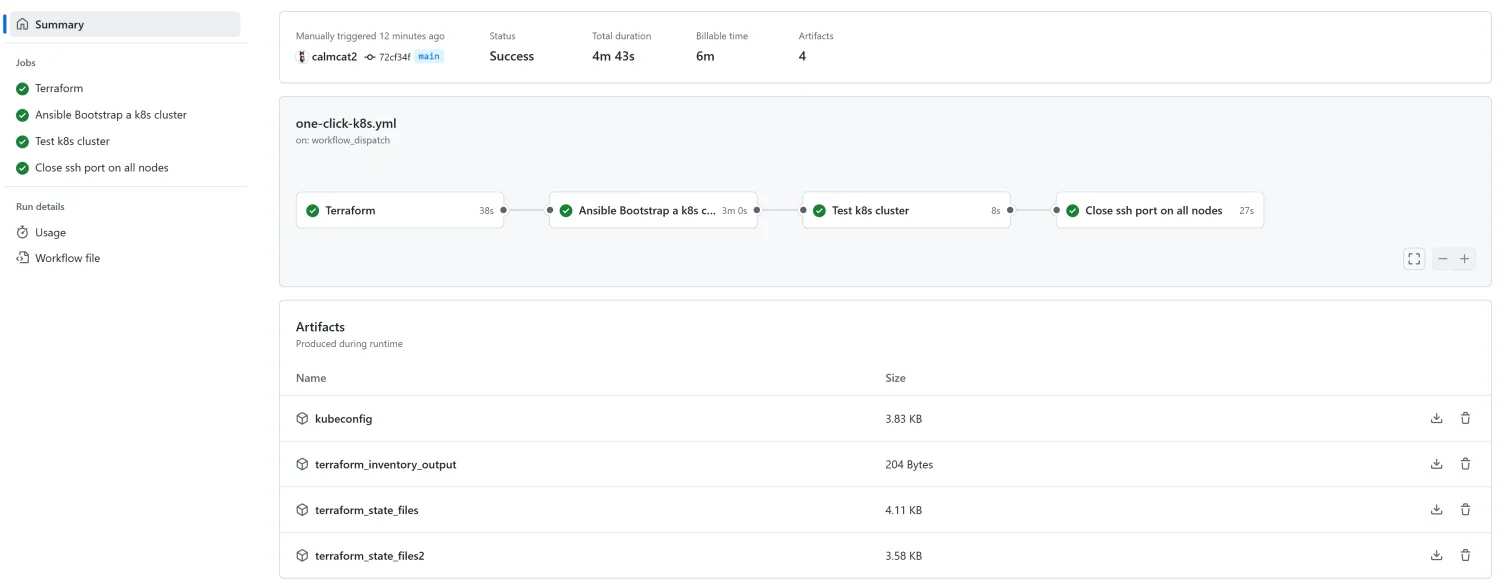
For 4min 43s, a Kubernetes cluster with a single master node and two worker nodes has been successfully created.

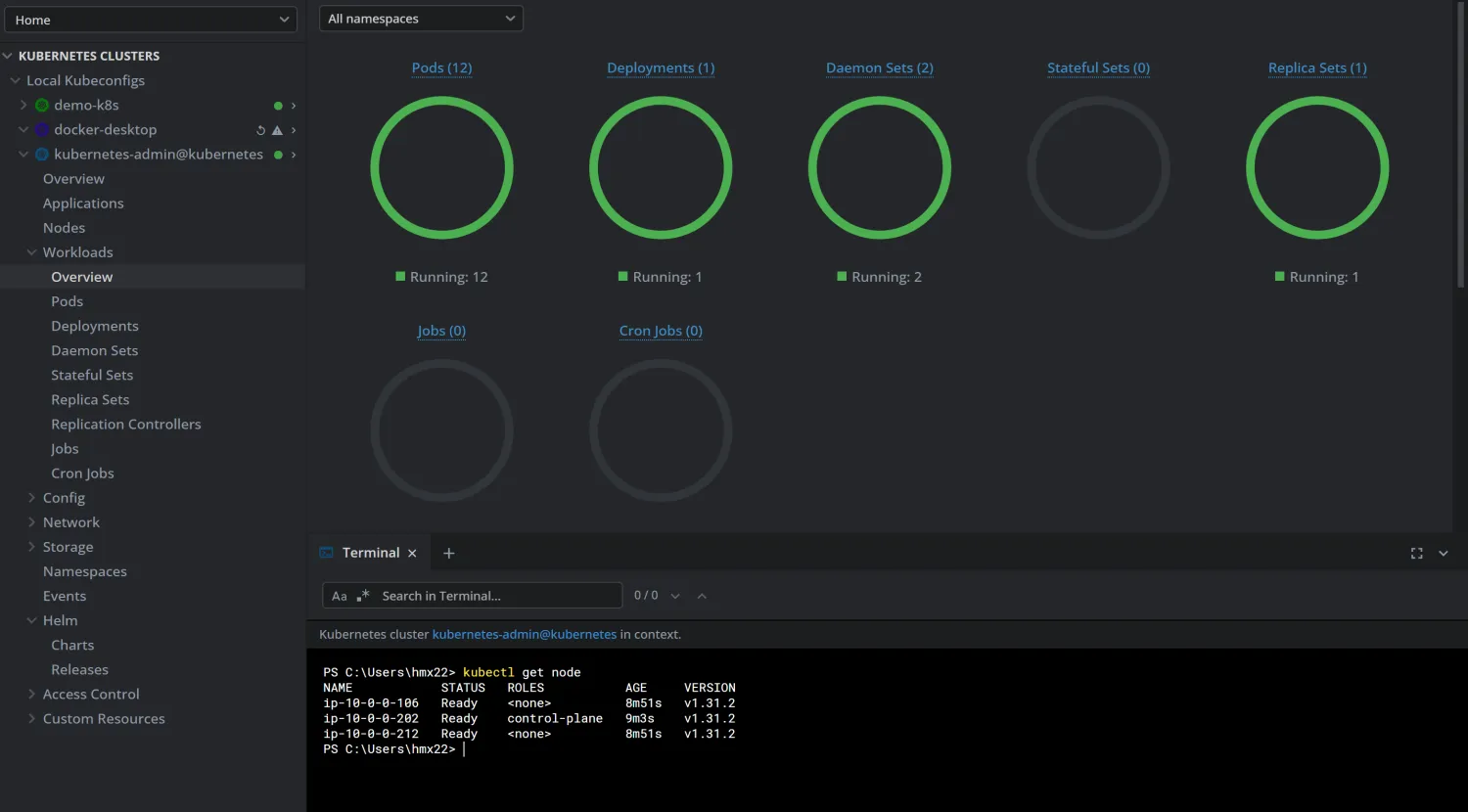
Download the kubeconfig file and access the kubernetes cluster.

Cluster Deletion

Workflow

The workflow to delete a Kubernetes cluster created by Terraform is straightforward. All you need is the Terraform state file that was generated during the cluster creation process. This file contains the current state of your infrastructure and is essential for Terraform to know what resources to destroy.

There are two ways to provide the Terraform state file to the delete workflow:

  1. Add the state file to the repository:

    You can manually add the terraform.tfstate file to a directory Terraform3/ in your repository and push the changes (be sure the repository is not in public view). Then, run the workflow.

  2. Reuse an artifact from the Create a Kubernetes cluster workflow:

    GitHub Actions allows workflows to access artifacts from previous workflows as long as they haven’t expired or been deleted. You can reuse the terraform.tfstate artifact from the earlier workflow that created the cluster.

Here is the workflow code, which is straightforward.

1
2
3
4
5
6
7
8
9
10
11
12
13
14
15
16
17
18
19
20
21
22
23
24
25
26
27
28
29
30
31
32
33
34
35
36
37
38
39
40
41
42
43
44
45
46
47
48
49
50
51
52
name: 'Delete a terraform created Kubernetes cluster'

on:
workflow_dispatch:
inputs:
run_id:
description: 'run id of the workflow that has a artifact of a terraform.tfstate file'
required: false
type: number

permissions:
contents: read
actions: read

jobs:
Terraform:
name: Terraform destroys Kubernetes cluster
runs-on: ubuntu-latest
defaults:
run:
shell: bash
working-directory: ./Terraform3
env:
AWS_ACCESS_KEY_ID: ${{ secrets.AWS_ACCESS_KEY_ID }}
AWS_SECRET_ACCESS_KEY: ${{ secrets.AWS_SECRET_ACCESS_KEY }}

steps:
- name: Checkout
uses: actions/checkout@v4

- name: Setup Terraform
uses: hashicorp/setup-terraform@v3.1.2

- name: Terraform Init
run: terraform init

- name: Download artifact from previous workflow
if: ${{ inputs.run_id != '' }}
uses: actions/download-artifact@v4
with:
name: terraform_state_files
github-token: ${{ secrets.GITHUB_TOKEN }}
run-id: ${{ inputs.run_id }}
path: ./Terraform3

- name: Terraform Plan Destroy
run: terraform plan -destroy

- name: Terraform Destroy
run: terraform destroy -auto-approve -input=false


Hands on

I’ll test with the second method.

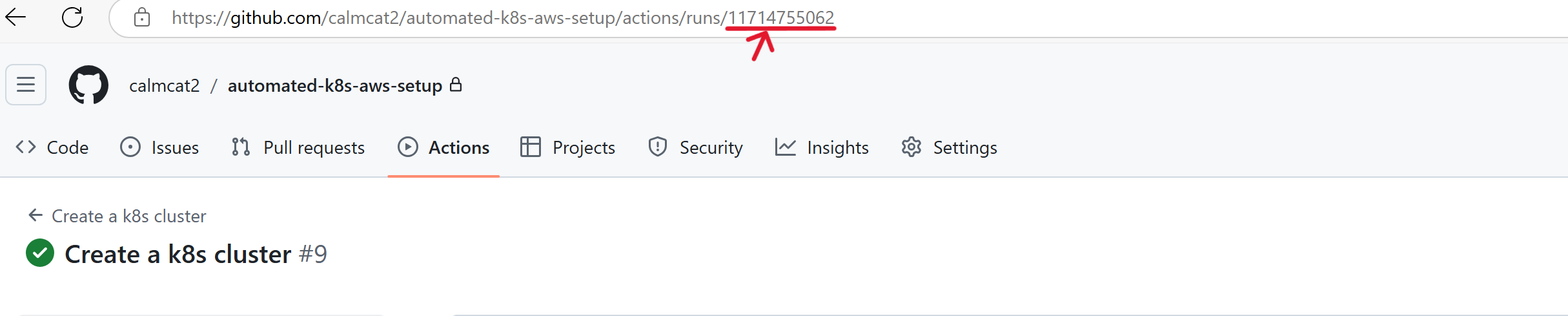
We can get the Run id from url of the Create a Kubernetes cluster workflow run.

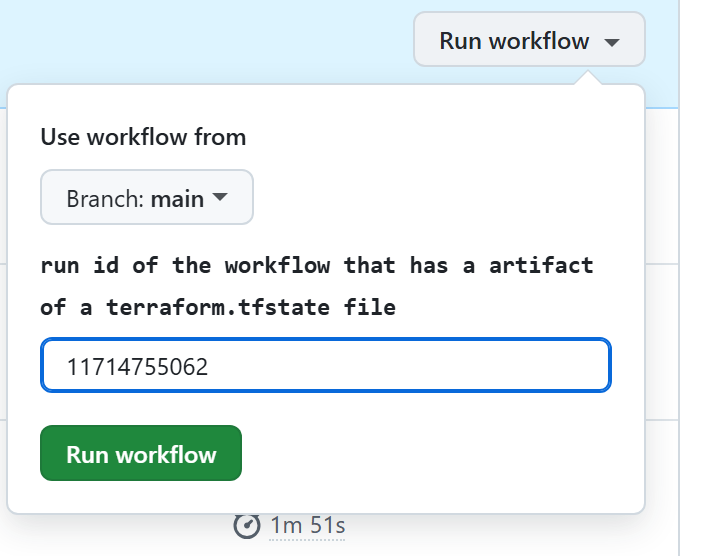
Enter the Run ID in the input field when triggering the Delete a terraform created k8s cluster workflow, and click Run workflow.

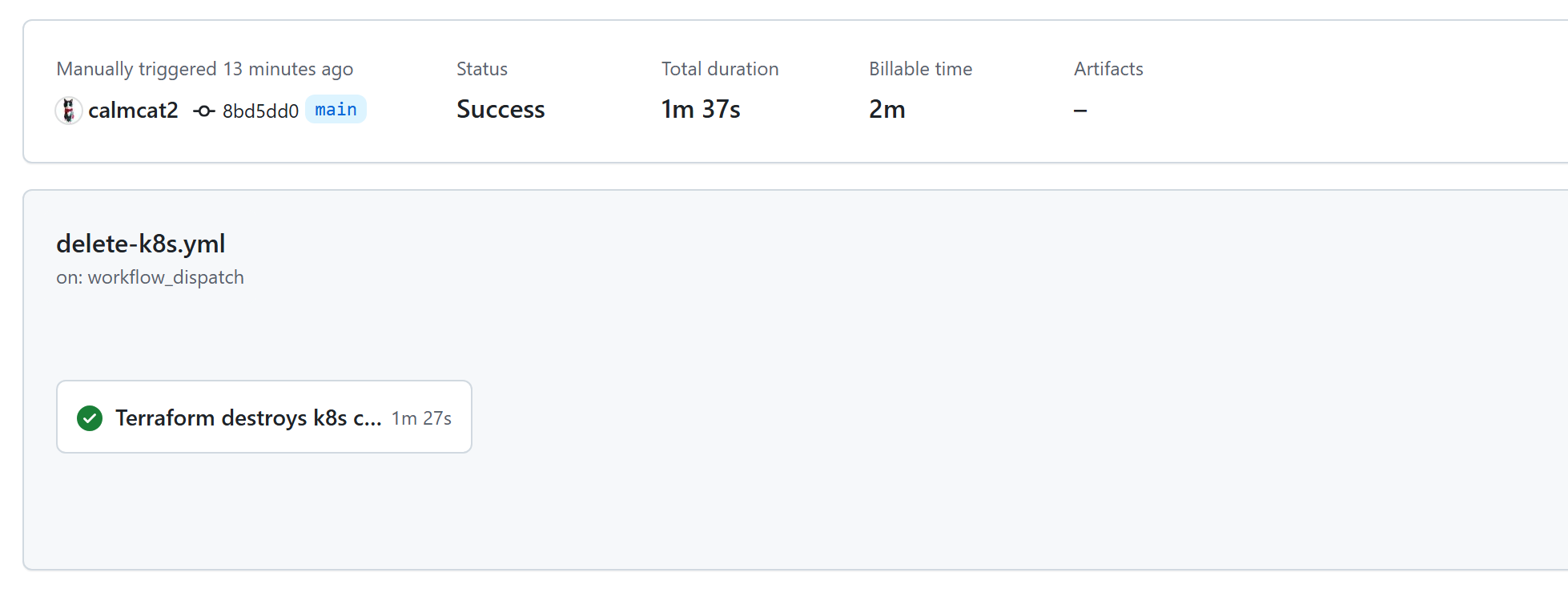
In less than 2 minutes, my Kubernetes cluster is completely deleted.